The Print Preview window has some powerful tools:
The software's Print Preview function allows you to preview a printout exactly the way it will look when actually printed.
The Print Preview window has some powerful tools:
The Print tool will send the displayed printout directly to the default printer.
You may move between the pages of the printout using the left and right arrows surrounding the Page x of x label.
The Zoom combo allows you to set the zoom level of the preview:
Choose Percent to enable the percent combo to the right of the zoom combo. That allows you to select the zoom percent you prefer.
Choose Two Pages to preview two pages side by side.
Choose Page Width to have the preview fit the window horizontally.
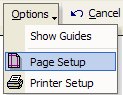
These are the Print Options tools:
 TIP: The Print Preview window's Options tools are the only place in the software where you may adjust your printers setup options. Here is how they work:
Show Guides superimposes the margin setting on the Print Preview.
Page Setup opens a new dialog which allows to change your printer's paper size and paper source, page orientation (landscape or portrait), and the page margins. You may choose the Printer tool on this dialog to actually drill down to your printer's printer-specific setup options.
Printer Setup offers similar options to Page Setup.
 NOTE: Most of The software's Work Order documents, sales receipts, and reports are pre-formatted, so messing about with your printer's page options could mess up the formatting.
 Printing (4:22)