Follow these steps to setup email:
 Follow these steps to setup email:
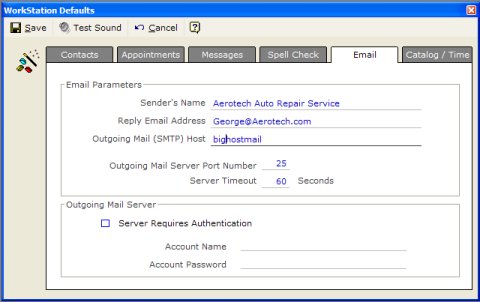
This is the Email setup dialog:
In almost every case, you can determine your email setup parameters by examining the setup of your existing email client (like Microsoft Outlook, or Outlook Express).
To view email setup parameters in Outlook Express:
You may also consult the documentation that came with your email service, or contact their support people.
Below are details of each of the software's Email Setup Parameters:
Senders Name - Type the name you would like your email recipients to see in the 'From' field on the email they receive. Probably your company name is most appropriate.
Reply Email Address - Type the email address you would like your recipients to reply to if they click the 'Reply' button in their email program. This is also the email address they will add to their email address books for your business.
Outgoing Mail (SMTP) Host - Type the host name of your outgoing email server.
Outgoing Mail Server Port Number - This number is almost always 25 (the default). Change it only on the advice of your email service's documentation or support personnel.
Server Timeout - This is the time in seconds that the software will wait for a response from your mail server, before it gives up and returns a 'No Response' error. In almost every case 60 seconds (the default) is about right.
Note that the Account Name and Account Password fields below are only required for Servers that Require Outgoing Mail Authentication.
Server Requires Authentication checkbox - Check this checkbox if your server requires a password to send email.
Account Name - if you checked the checkbox above, enter your outgoing email account name (the same as in your email client).
Account Password - if you checked the checkbox above, enter your outgoing email account password (the same as in your email client).
 Workstation Defaults (9:18)